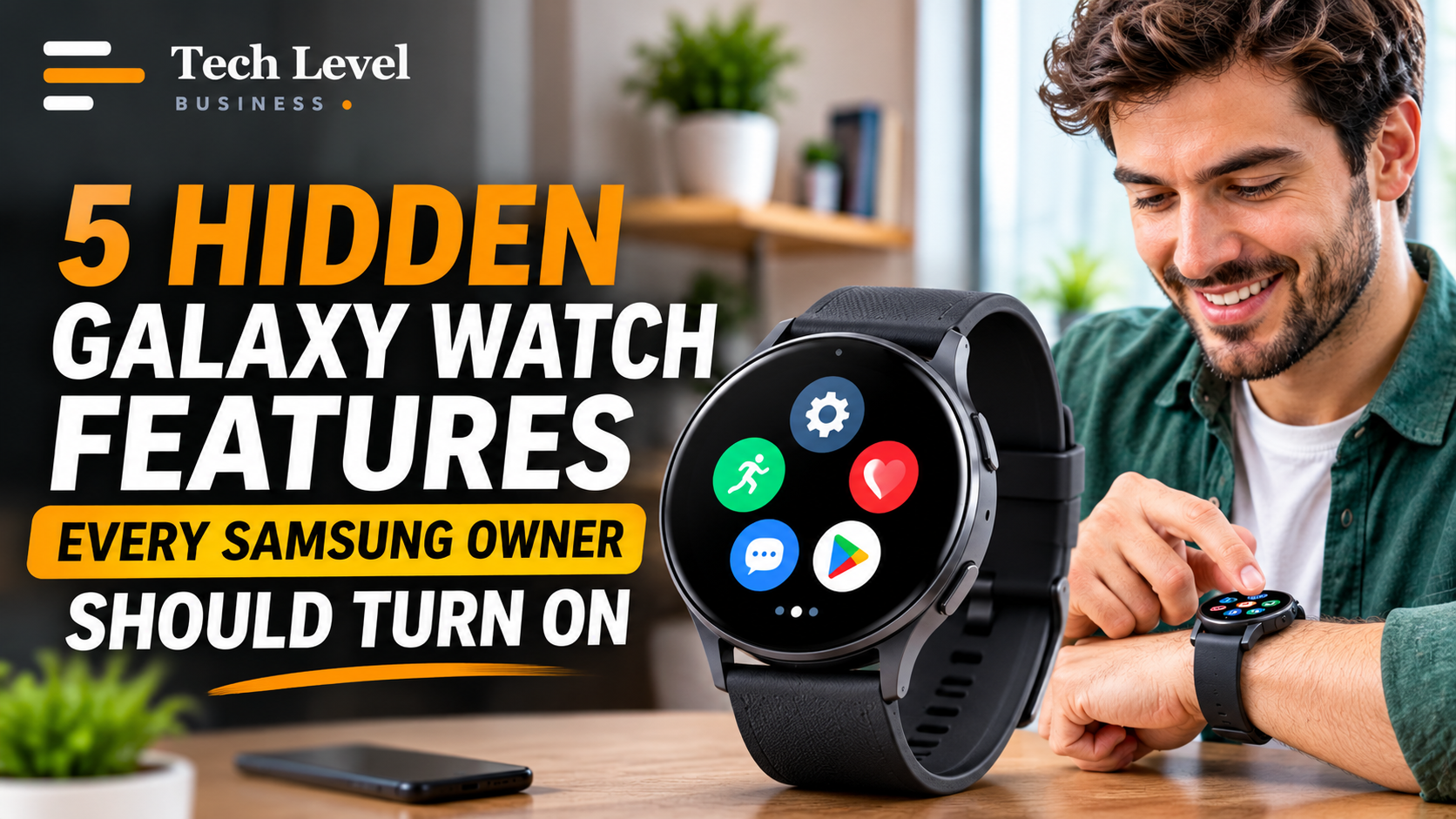
5 Hidden Galaxy Watch Features Every Samsung Owner Should Turn On
Five little-known Galaxy Watch settings, a screen lock, wrist gestures, an hourly chime, notification filters and custom button shortcuts, can make Samsung’s smartwatch safer and less noisy. Each takes about a minute to set up.

Author’s Review
I like tips like these because none of them needs new hardware or a paid app. If I could change only one setting, it would be the screen lock. A watch that can hold payment cards and health data should not open for anyone who picks it up. Gestures are fun but take practice, and the hourly chime is purely a matter of taste. My one warning: Samsung’s menus shift between models, so a different label is not a sign that you did something wrong.
Why These Settings Matter
Galaxy Watches carry far more options than most owners ever open. How-To Geek’s November 8 guide pointed to five of them. We checked each against Samsung’s own support pages and other reporting, and added the details that matter before you tap anything. Samsung notes that available screens and settings may vary by watch, phone or carrier, so use the paths below as a guide, not a guarantee.
The Five Features
1. Lock the Screen
Open Settings, tap Security and privacy, then Lock type, and choose a pattern or PIN. Samsung rates a pattern as medium security and a PIN as medium to high. Once you unlock the watch, it stays unlocked while it senses you are wearing it. Samsung also says a lock is required to use Samsung Wallet on the watch.
There is one catch. If you forget the PIN or pattern, Samsung says the lock cannot be reset, and the only fix is a factory reset that erases the watch’s data. Choose something you will remember. For more device-safety basics, see our cybersecurity coverage.
2. Turn On Wrist Gestures
Gestures let you answer calls, dismiss alerts or open an app with a wrist movement, but they stay off until you enable them. On older software, look under Settings > Advanced features > Gestures. Newer watches use Settings > Buttons and gestures, which offers double pinch, shake to dismiss and knock knock.
A WhatGear walkthrough for the Galaxy Watch 8 series (August 2025) calls double pinch handy for workouts in gloves, says knock knock can start a chosen exercise, and says the shake gesture can decline calls. Expect a short learning curve; the gestures do not always register on the first try.
3. Enable the Hourly Chime
If you miss the old digital-watch beep, go to Settings > Sound and vibration > System sounds and switch on Hourly chime. Your watch will then play a sound each hour. The same menu also offers a quiet ticking option, according to the WhatGear video.
4. Limit Notifications
Wrist buzzes add up fast, especially from group chats in apps such as WhatsApp (we recently covered its new in-app browser for iOS chats). Open the Galaxy Wearable app on your phone, tap Watch settings, then Notifications and App notifications. Turn off the “All apps” toggle, then enable only the apps you want on your wrist.
5. Customize the Home and Back Keys
Go to Settings > Advanced features > Customize buttons (newer software calls the menu Buttons and gestures). By default, a double press of the home key reopens your last app, while pressing and holding brings up Bixby. You can reassign the double press to other options, such as My Exercises, accessibility shortcuts or an app you pick. The back key can also be switched to show recent apps.
The Bottom Line
None of these tweaks costs money, and together they cover security, convenience and sanity. Start with the lock, then trim notifications, then experiment with gestures and buttons. If a menu looks different on your watch, update its software and check the Galaxy Wearable app before giving up.
Frequently Asked Questions
Do these features work on every Galaxy Watch?
Most exist on recent models, but menu names and gesture options differ by watch and software version. Samsung also says a security lock cannot be set on Galaxy Fit series devices.
What if I forget my watch PIN?
Samsung says there is no way to reset the lock type. You must factory reset the watch, which erases its data, and you may need to verify the Google account on it.
Are wrist gestures on by default?
No. They are switched off until you enable them in the watch’s settings.
Elena Rostova
B2B Operations Consultant & Business Editor
Elena Rostova is a B2B strategy consultant specializing in digital operations, regulatory risk management, and scaling business models. She writes on corporate licensing, operational frameworks, and enterprise growth.